

Shopify App
Set up Garanify for Shopify
Last updated 18 November 2026
In short
After installing, Garanify opens the setup with three steps: notice, GARAN label and check. You add the app block on the product page, activate the app embed for the cart and decide whether products have more than 2 years of producer guarantee. The overview then shows the status.
Step by step
-
1. Install the app
Install Garanify through the installation link and confirm the permissions. The app is not listed in the Shopify App Store yet.
-
2. Product page
In step 1, open the theme editor for Product page, add the app block Legal guarantee notice below the buy button and save.
-
3. Cart
For Cart, click Activate app embed, switch on the embed Garanify and save.
-
4. Decide on the GARAN label
Answer the producer guarantee question in step 2.
-
5. Finish
Click Finish and go to overview in step 3.
Installation
Garanify is not listed in the Shopify App Store yet. Until then you install the app through the link you get from us and confirm the permissions. Ask for the link via the contact page.
The setup in three steps
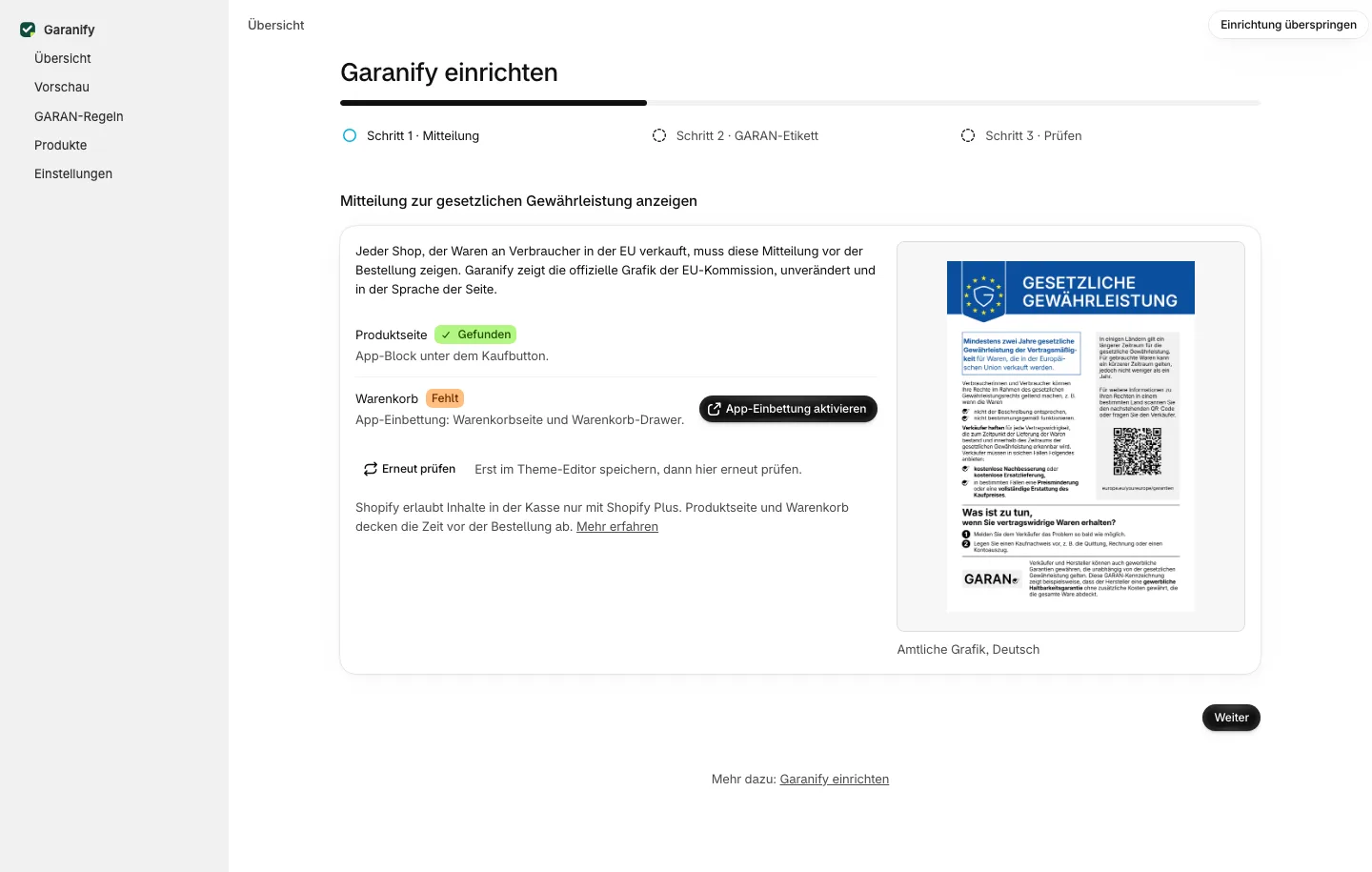
When you open Garanify for the first time it takes you to Set up Garanify. At the top are the steps Notice, GARAN label and Check.
Step 1: Notice
There are two places:
- Product page: app block below the buy button.
- Cart: app embed for the cart page and the cart drawer.
Each place has a badge Found, Not added or Not checkable. If a place is missing, the button opens the theme editor at the right spot. Save there, come back and click Check again.
Step 2: GARAN label
Garanify asks whether the producer gives more than 2 years of guarantee at no extra cost for some of your products.
- No: you do not need a GARAN label. You can add rules any time later.
- I’m not sure: Garanify shows the four conditions that must all apply.
- Yes, for some products: in the Free plan you enter the details on the product. With Pro you create the first rule right away.
Step 3: Check
The last step shows all items. Finish and go to overview completes the setup, even if items are still open. The overview keeps track of them.
Later
Run setup again on the overview or in the settings runs the steps again. Skip setup goes straight to the overview.
Garanify implements the display requirements of Implementing Regulation (EU) 2025/1960. It is not legal advice.
Related questions
Which permissions does the app need?
Read and write products (for the GARAN details in metafields), read themes (to check the places) and read shop languages.
Does Garanify change my theme?
No. You add the app block and app embed yourself in the theme editor. Garanify only reads the theme to check it.
Does Garanify work with every theme?
With all Online Store 2.0 themes that support app blocks. Older themes can use the end-of-page fallback in the app embed.
Do I have to finish the setup?
No. You can skip it. The overview then shows what is still open.
Sources
Was this article helpful?
What was missing? Send us a short note and we will add it to the article. Send feedback by email
Your choice is not stored or sent anywhere.
Thank you for your feedback. What was missing? Send us a short note and we will add it to the article. Send feedback by email