

WooCommerce Plugin
Place the notice in WooCommerce
Last updated 18 November 2026
In short
Garanify shows the notice in WooCommerce on the product page, in the cart, in the checkout before the order button and in the order confirmation email. With block themes and classic themes this happens automatically. Where a theme does not render the place, use the Garanify block or the shortcode [garanify_notice].
The places
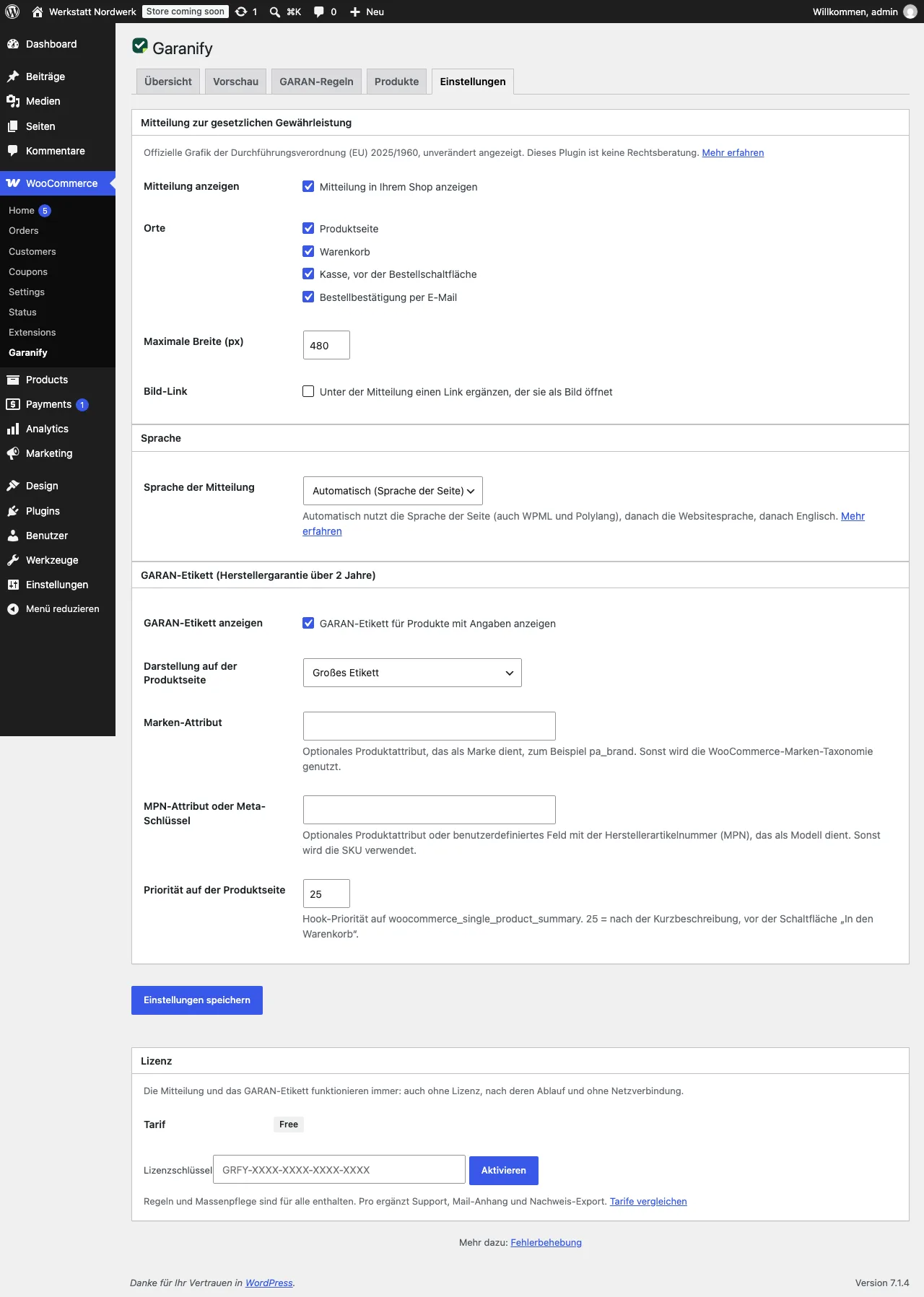
Under WooCommerce > Garanify > Settings, the card Notice on the legal guarantee has four checkboxes at Locations. All are on:
| Place | Exactly where |
|---|---|
| Product page | Block theme: below the add to cart block. Classic: in the hook woocommerce_single_product_summary, by default after the short description and before the add to cart button. |
| Cart | Cart block: above the checkout button. Classic: below the cart table. |
| Checkout, before the order button | right before the button the customer orders with |
| Order confirmation email | as an image in the emails “Processing order” and “Order on hold” |
In addition, Mail attachment (“Attach the notice as an image file to the order confirmation email”) attaches the notice as a PNG file to the same emails, so the buyer has it even if their mail program blocks images. The image in the mail text is included in every edition. In the edition from garanify.com the attachment is part of Pro; in the edition from the WordPress directory it is included.
Position on the product page (classic theme)
Product page priority (1 to 100, default 25) moves the notice within the hook woocommerce_single_product_summary. 25 is after the short description and before the add to cart button. Higher values move it further down.
If the theme does not render the place
Some themes override the product template without the hook. The guide then reports “Your theme overrides the product template without the hook woocommerce_single_product_summary.” Two ways help:
- Garanify block: open the template “Single Product” in the site editor, insert the block Garanify and choose “Notice on the legal guarantee” under Content.
- Shortcode: put
[garanify_notice]into a text field of the template.[garanify_notice lang="de" max_width="400"]sets language and width.
Check
After saving, click Check again on the overview and open a product page and the cart. More cases are in Troubleshooting.
Related questions
Does the notice have to be on every product page?
The regulation requires it before the contract is concluded, in a prominent manner. Product page and cart or checkout are common. Garanify shows it at all places by default.
Does the notice in the order email cost extra?
No. The image in the order confirmation is included in every WooCommerce edition.
Does this work with page builders?
If the builder builds the product template itself, put the shortcode [garanify_notice] into a text or shortcode element.
Is the notice changed?
No. Garanify shows the official graphic unchanged; only the width adapts.
Sources
Was this article helpful?
What was missing? Send us a short note and we will add it to the article. Send feedback by email
Your choice is not stored or sent anywhere.
Thank you for your feedback. What was missing? Send us a short note and we will add it to the article. Send feedback by email