

Shopware 6 Plugin
Place the notice in Shopware 6
Last updated 18 November 2026
In short
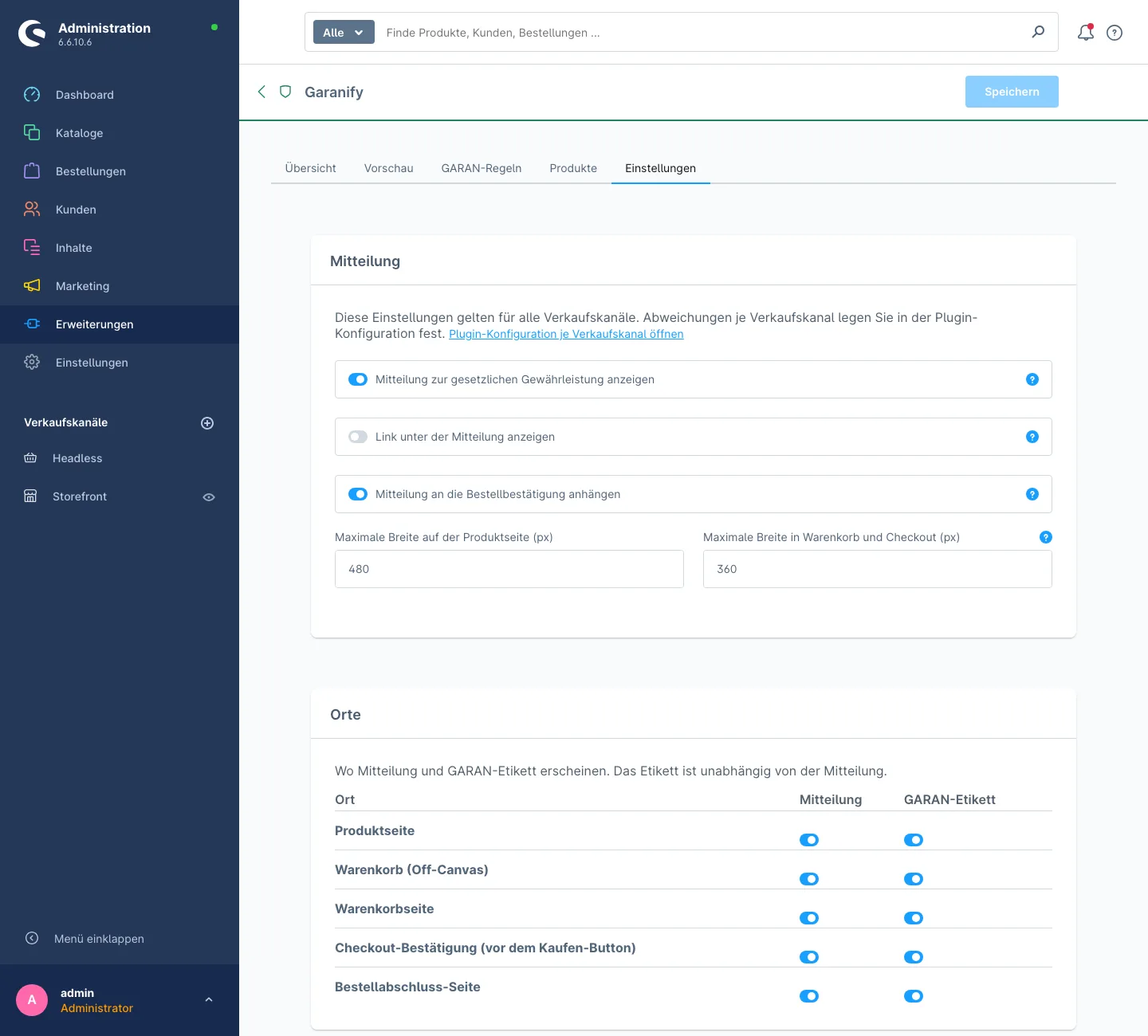
Garanify shows the notice in Shopware 6 below the buy button on the product page, in the off-canvas cart, on the cart page, before the order button in the checkout and on the order completed page. You switch the places in the Settings tab, in the card “Places”.
The places
Garanify uses template extensions in the storefront. There is no Shopping Experiences element, and you do not have to add anything to templates.
| Place | Exactly where |
|---|---|
| Product page | in the buy box, below the buy button |
| Cart (off-canvas) | above the checkout button |
| Cart page | above the checkout button |
| Checkout confirmation (before the order button) | right before the button the customer orders with |
| Order completed page | below the product table |
Switch places on and off
Under Extensions > Garanify > Settings you find the card Places. It has one row per place and one column each for Notice and GARAN label. Both are switched independently. Save with Save at the top.
Deviate per sales channel
The Places card applies to all sales channels. If one channel should differ, open the link Open plugin configuration per sales channel in the settings and pick the sales channel at the top.
Notice in the order confirmation
With Pro, Garanify attaches the notice as an image to the order confirmation. The switch Attach the notice to the order confirmation is in the card Notice. In the Free plan it is visible but locked.
Check
After saving, click Check again on the overview. The guide opens a product page and the cart of your storefront and reports “The test request of the product page shows the notice.” If it is missing, the usual cause is a theme that does not apply the template extensions of plugins. See Troubleshooting.
Related questions
Does the notice have to be on every product page?
The regulation requires it before the contract is concluded, in a prominent manner. Product page and cart or checkout are common. Garanify shows it at all five places by default.
Can I drag the notice into a Shopping Experience?
No, there is no own element. The notice comes with the buy box, which Shopware also uses in Shopping Experiences for product pages.
Why is the mail attachment locked?
The attachment to the order confirmation is included in Pro. In the Free plan the switch stays visible and disabled.
Is the notice changed?
No. Garanify shows the official graphic of the European Commission unchanged; only its width adapts.
Sources
Was this article helpful?
What was missing? Send us a short note and we will add it to the article. Send feedback by email
Your choice is not stored or sent anywhere.
Thank you for your feedback. What was missing? Send us a short note and we will add it to the article. Send feedback by email