

Shopware 6 Plugin
Set up Garanify in Shopware 6
Last updated 18 November 2026
In short
Install the plugin under Extensions > My extensions, then open Extensions > Garanify. The setup guide on the overview checks your storefront with test requests and shows what is still missing. The notice is switched on right after installation.
Step by step
-
1. Request the ZIP file
Request the ZIP file of the pre-release version (on request, until it is published in the store).
-
2. Upload the plugin
In the administration open Extensions > My extensions, choose Upload extension and select the ZIP file
GaranifyGuarantee-sw6.zip. -
3. Install and activate
For “Garanify – EU legal guarantee notice & GARAN label” click Install, then Activate.
-
4. Open the overview
Open Extensions > Garanify. The setup guide checks the storefront automatically.
-
5. Resolve open items
Resolve each open item with its button, then click Check again.
-
6. Look at the shop
Open a product page and the cart in the storefront. The notice sits below the buy button and above the checkout button.
Requirements
- Shopware 6.5 or 6.6, PHP 8.1 or later
- An active storefront sales channel with a domain. Without one the guide cannot check the places.
- An admin user with the permission Edit Garanify to save rules and settings. View Garanify is enough to read.
The setup guide
The overview is where Garanify starts. At the top is the Setup guide with a counter such as “6 of 7 items done” and a line saying which sales channel and how many languages were checked.
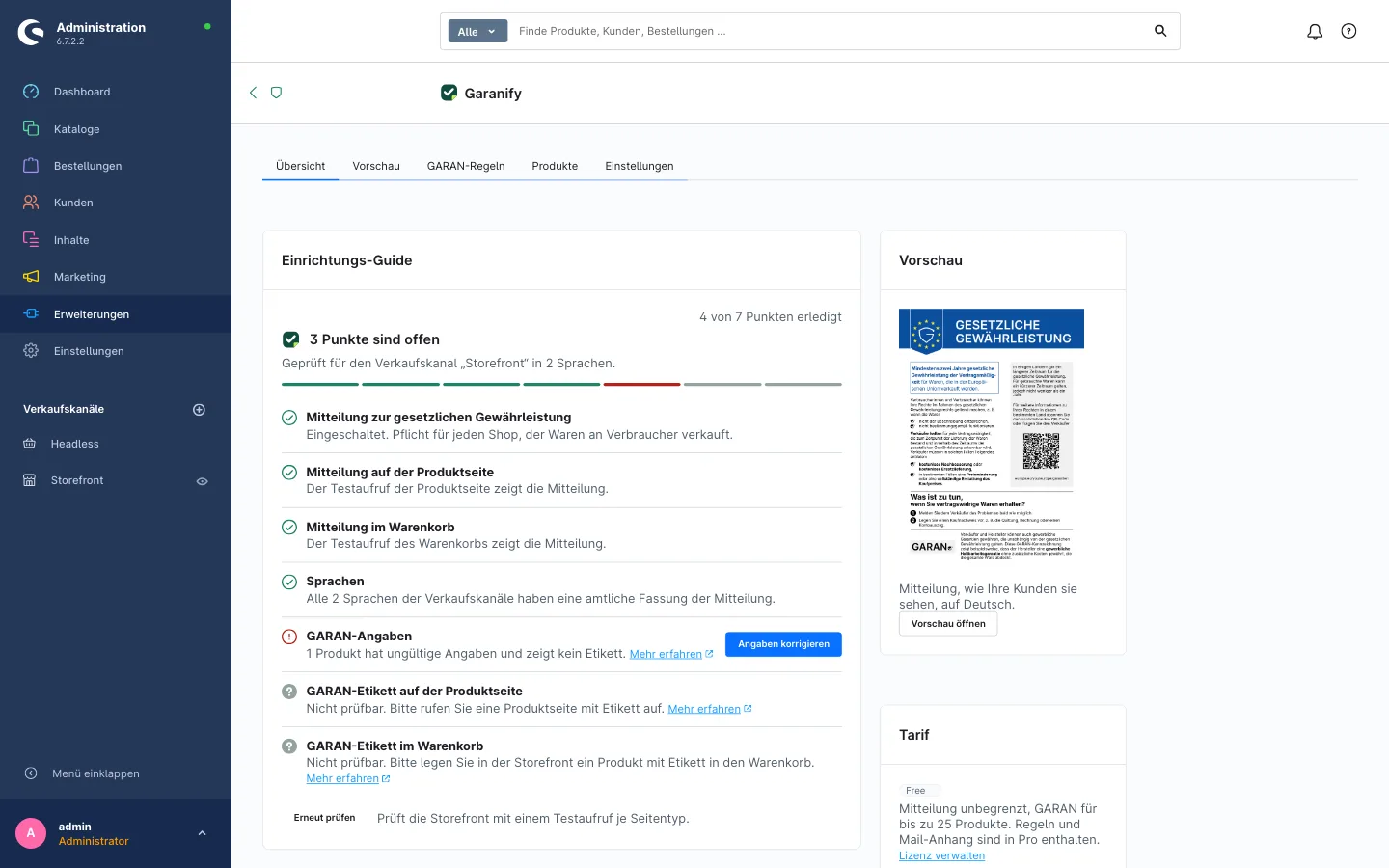
The items in the guide:
| Item | What is checked |
|---|---|
| Notice on the legal guarantee | Is the notice switched on? |
| Notice on the product page | Does a test request of a product page show the notice? |
| Notice in the cart | Does a test request of the cart show the notice? |
| Languages | Do all languages of your sales channels have an official version? |
| GARAN details | Are there products with invalid details? |
| GARAN label on the product page and in the cart | Does the label appear? Only shown when products or rules with years exist. |
Open items have a button that leads straight to the fix and a Learn more link. After a change in the theme, click Check again. When everything is done, the heading reads “Your shop shows the required information” and the list collapses.
Do you need a GARAN label?
Every shop that sells goods to consumers needs the notice. Only products with a free producer guarantee of more than 2 years need the GARAN label. If no product has one, the guide shows the info line “No product has a producer guarantee of more than 2 years. No label needed.” The four conditions are explained in GARAN label: when is it required?.
Areas of Garanify
Garanify has five tabs: Overview, Preview, GARAN rules, Products and Settings. Your licence is in the settings, in the card License and plan.
Garanify implements the display requirements of Implementing Regulation (EU) 2025/1960. It is not legal advice.
Related questions
Do I have to switch anything on after installing?
No. The notice is on after installation for the product page, cart and checkout. The guide shows whether your storefront really renders it.
Do I have to recompile the theme?
No. Garanify ships its own styles and scripts. Clear the cache after installing if the storefront still shows the old version.
Does the setup apply to all sales channels?
The settings in the Settings tab apply to all sales channels. Set deviations per sales channel in the plugin configuration.
What does Garanify cost for Shopware 6?
The Free plan includes the notice without limits and the GARAN label for up to 25 products. Pro has a monthly or yearly fee; current prices are on the pricing page.
Sources
Was this article helpful?
What was missing? Send us a short note and we will add it to the article. Send feedback by email
Your choice is not stored or sent anywhere.
Thank you for your feedback. What was missing? Send us a short note and we will add it to the article. Send feedback by email