

Shopware 6 Plugin
GARAN label in Shopware 6: details per product
Last updated 18 November 2026
In short
In Shopware 6 you enter the producer guarantee on the product in the custom fields “Garanify – producer guarantee (GARAN)”. Without an entry, brand and model identifier come from the manufacturer and the manufacturer number. The Products tab shows which products have a label and where details are missing.
The fields on the product
Open the product under Catalogues > Products and scroll to the custom fields. The set Garanify – producer guarantee (GARAN) has four fields:
| Field | Meaning |
|---|---|
| Producer guarantee in years | Only producer guarantees of more than 2 years, free of charge, covering the whole product. Whole or half years. Leave empty if a rule should apply. |
| Brand (default: manufacturer) | Empty: the manufacturer of the product |
| Model identifier (default: MPN, then product number) | Empty: the source from the settings, otherwise the product number. Never the EAN. |
| Do not show GARAN for this product | Hides the label for this product, even if a rule matches |
Variants inherit the details from the main product. If details are missing, the product page in the administration shows GARAN details incomplete with the list of reasons.
The Products tab
Under Extensions > Garanify > Products you see every product with its status. The filters are All, With label, Invalid, Without label and Hidden. Search covers name, product number and manufacturer.
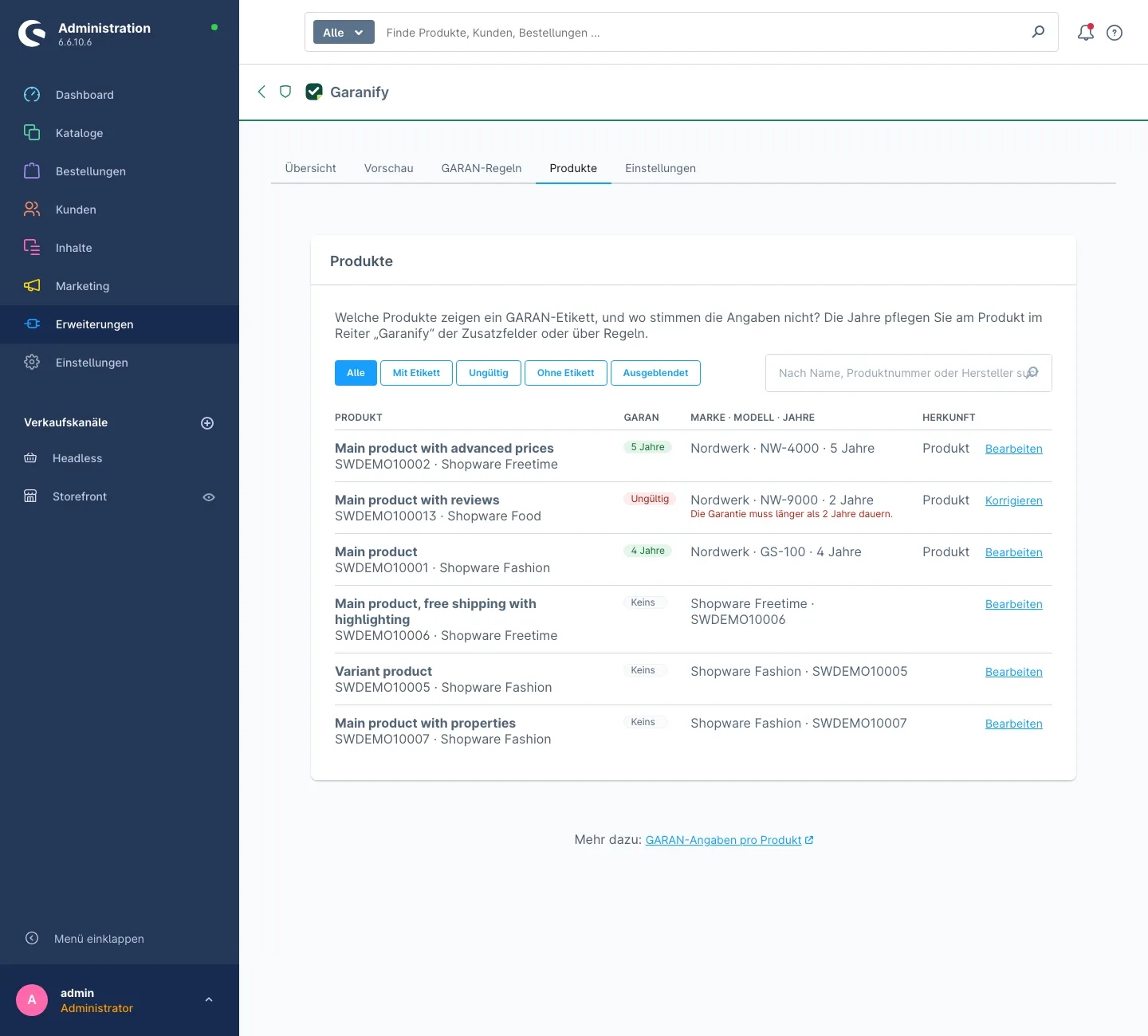
Each row shows the label (for example “6 years”, Invalid or None), the details and the source: Rule or Product. Correct takes you straight to the product.
Many products at once
Select products with the box at the start of the row; the box in the header selects all on the page. Under For selection choose an action: Set duration (with Duration in years, from 2.5), Hide label, Show label again or Remove guarantee data. Click Apply. The values are written to the custom fields of the products.
Export evidence
Download evidence as CSV downloads a file: one row per shop language for the notice, with the places switched on and the time since when it has been active that way, and one row per product with GARAN data: product number, brand, model, years, source and status (active, invalid with reason, hidden). Keep the file as evidence. The settings for all sales channels apply.
Reasons for “Invalid”
- “The guarantee must last longer than 2 years.”
- “Whole or half years only.” For example 5 or 7.5.
- “The brand is missing: enter it or assign a manufacturer to the product.”
- “The model is missing: enter it or give the product a manufacturer number or product number.”
A product with invalid details shows no label. The notice still appears.
Model identifier from another source
If the model is not in the manufacturer number, change Source of the model identifier in the settings, card GARAN label: Manufacturer number, Custom field or Property group. For the last two, enter the name of the field or group.
Which brand and model belong on the label is explained in Brand and model on the GARAN label.
Related questions
Where are the custom fields on the product?
In the product detail page, in the custom fields area, set “Garanify – producer guarantee (GARAN)”. If you cannot see it, deactivate and activate the plugin once so that Garanify creates the set again.
Why does a product with 5 years show no label?
Usually the brand or model is missing. The Products tab names the reason in the row, and so does the product page in the administration.
Do the years apply to variants too?
Yes. Variants inherit the details from the main product.
Is the EAN used as model?
No. If the model identifier is missing, Garanify uses the product number, never the EAN.
Sources
Was this article helpful?
What was missing? Send us a short note and we will add it to the article. Send feedback by email
Your choice is not stored or sent anywhere.
Thank you for your feedback. What was missing? Send us a short note and we will add it to the article. Send feedback by email